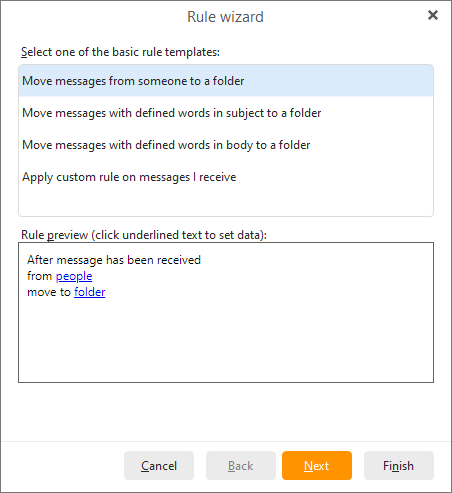
A rule is made up of four parts: invocation condition, condition, action and exception.
Invocation Condition: whether the rule is to be invoked when mail is received or when a mail is sent. Click on the underlined word received to change the condition of invocation.
Condition: logical conditions which when met will trigger the rule.
Action: action to be taken on the messages fitting the rule.
Exception: conditions that act as exceptions to the rule.
There are seven basic types of rules that you can modify to suit your needs. Some rule templates are only available for Local rules:
1. Move message from someone to a folder
With keywords: received, people, folder. Click on each keyword to define when (received) a rule is applied, from whom (people) the email comes, and to which folder you wish the emails to be moved to.
2. Move message with defined words in subject to a folder
With keywords: received, words, folder. Click on each keyword to define when (received) a rule is applied, containing which wordsin subject, and to which folder you wish the emails to be moved to.
3. Move message with defined words in body to a folder
With keywords: received, words, folder. Click on each keyword to define when (received) a rule is applied, containing which wordsin message body, and to which folder you wish the emails to be moved to.
4. Move spam messages to Spam folder (Local rule only)
With keywords: received, X-Spam-Status: Yes, X-Spam: yes, Junk E-mail
5. Set tag for message from somebody (Not available for IceWarp)
With keywords: received, from, tag. Click on each keyword to define when (received) a rule is applied, from which senders (from people) and which tag is to be assigned to all such messages.
6. Apply custom rule on message I receive
Using this template you can customize a rule that will apply to received messages. Check the conditions and exceptions you would like to include in your rule and then specify the values by clicking on the underlined blue text.
7. Apply custom rule on message I send (Local rule only)
Using this template you can customize a rule that will apply to sent messages. Check the conditions and exceptions you would like to include in your rule and then specify the values by clicking on the underlined blue text.
Click next to proceed to the rule customization window. Here you can add additional conditions to your rule. Rules are made up of keywords and you can combine these keywords to form arbitrarily complex rules by checking the conditions you need from the list, and clicking on the underlined words in Rule preview to specify the parameters.
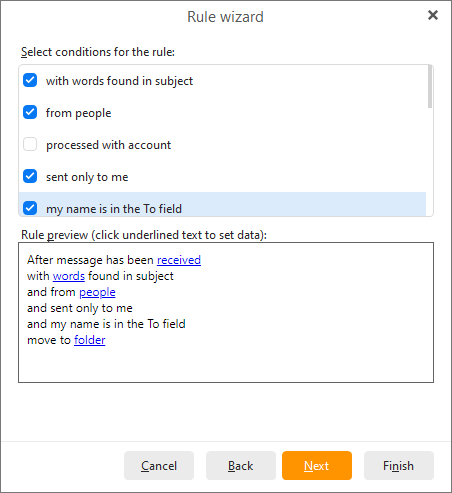
Available rule components include:
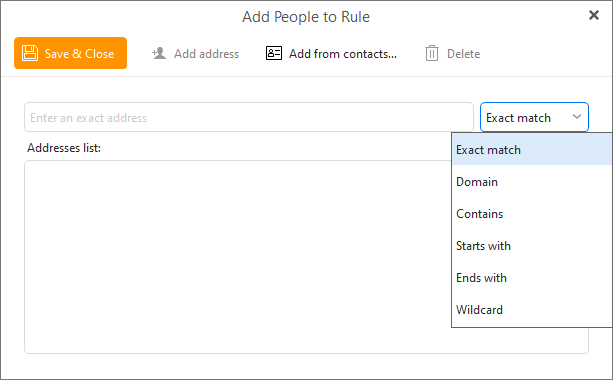
When using the from people condition you can set the full email address, just the domain or any smaller part of it using these options:
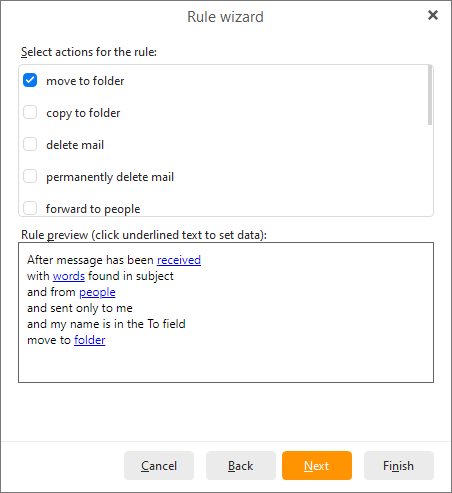
Click Next to define the actions to be taken for this rule:
Click on the button Next to define exceptions for the rule:
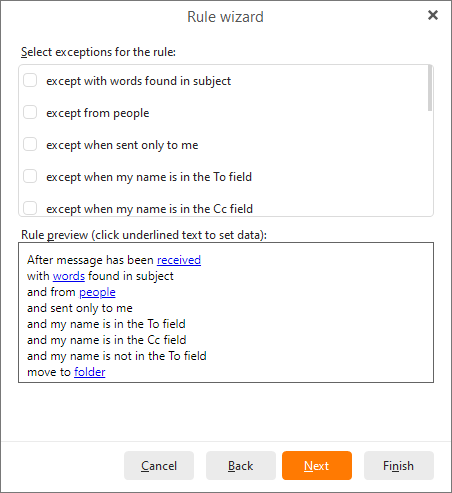
Finally, click Next to give the rule a name and select whether you wish to enable the rule right away. Click Finish and save your new rule.